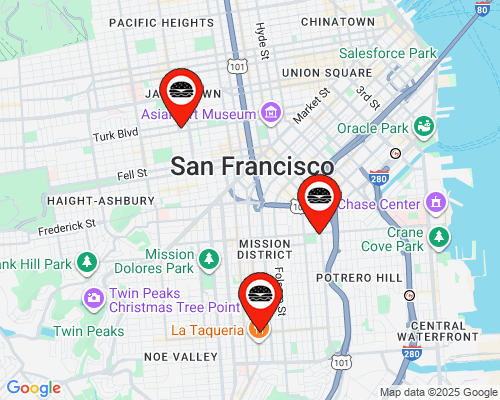
Help customers find
their nearest store.
Personalized Maps use the address, city or postal code in your email platform to show each recipient a nearby store, its address and local details.
One campaign.
The details of their local store.
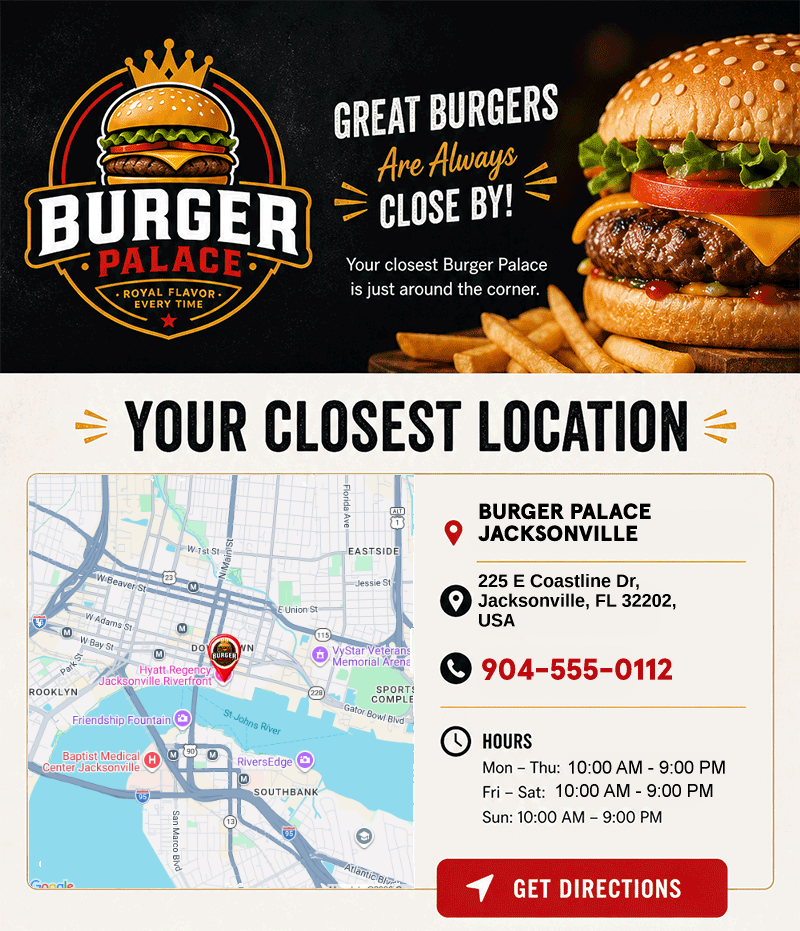
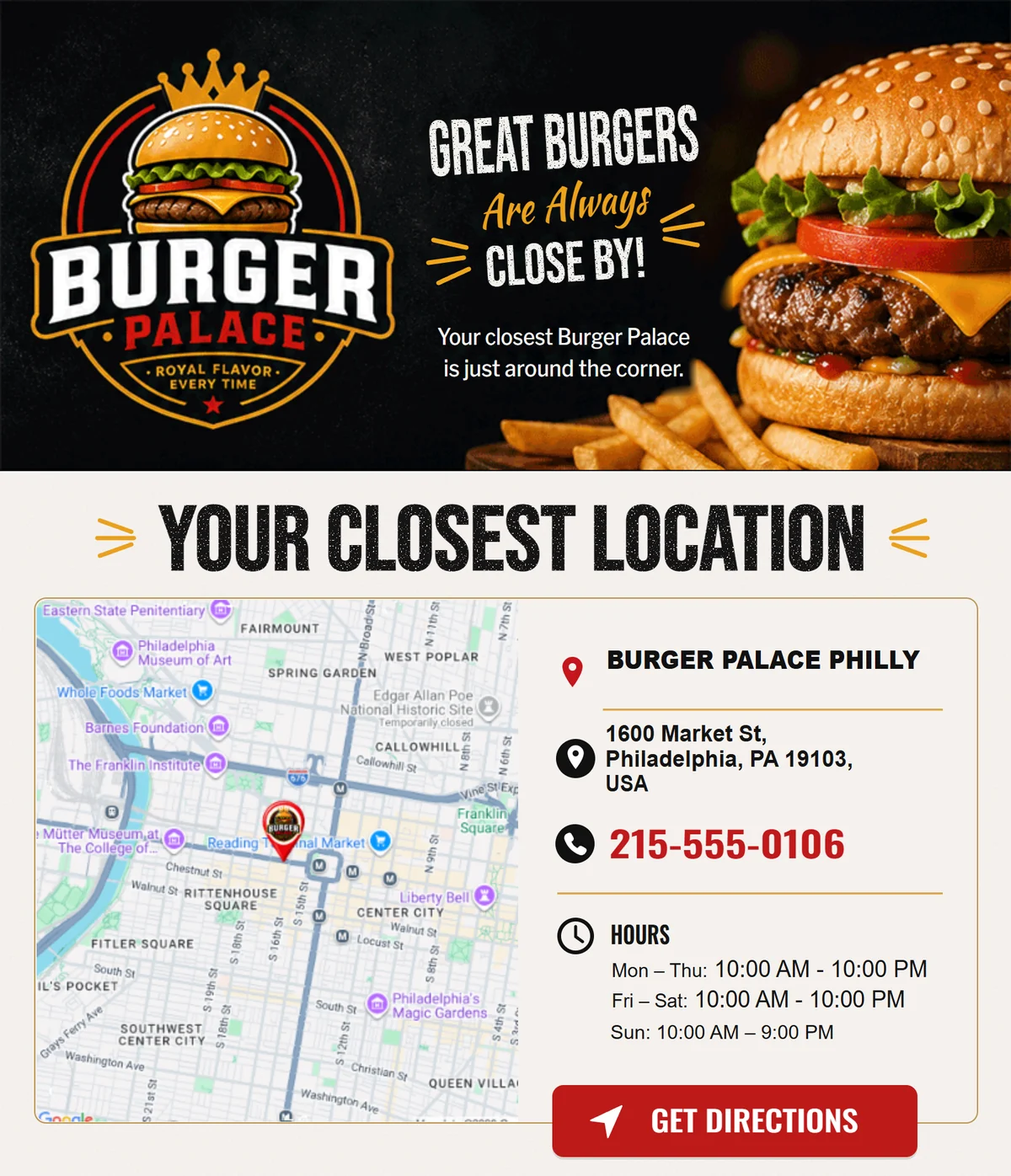
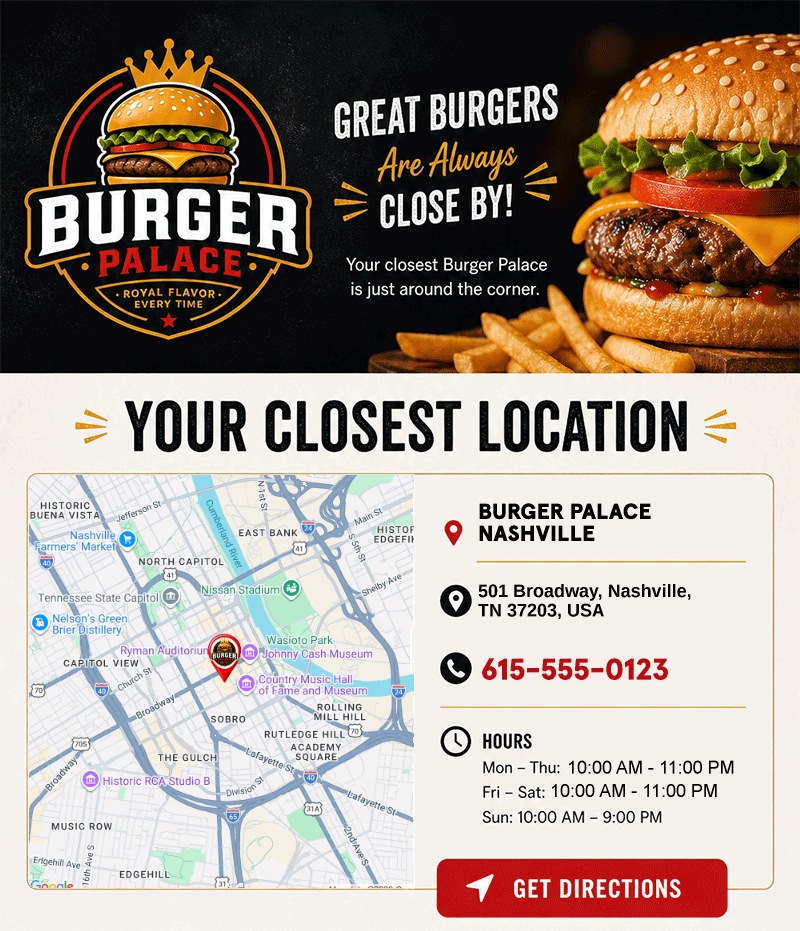
The Burger Palace examples keep the same design for Philadelphia, Jacksonville and Nashville. The map, address, phone number and opening hours change with the selected location.
Import those details with your locations, then add Map Image and Map Text elements in Studio. Both use the same matched location, so the map and the information beside it belong together.
Use the same approach for a branch invitation or an event reminder with the recipient's local venue.
Connect your offer
to a nearby location.
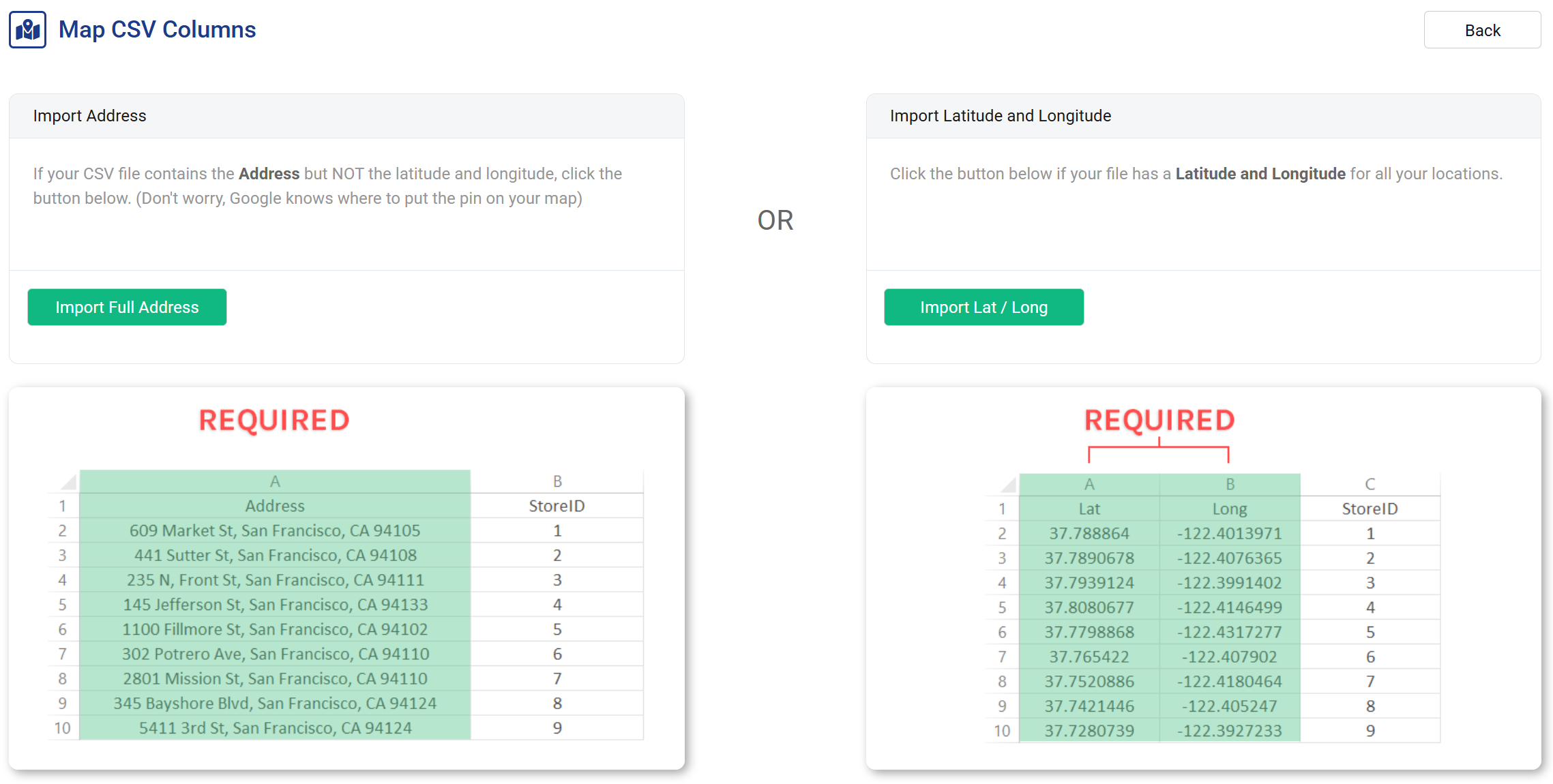
Upload your store or venue list as a CSV, using addresses or latitude and longitude. Include custom fields for the details you want to show, such as hours, a phone number or local offer text.
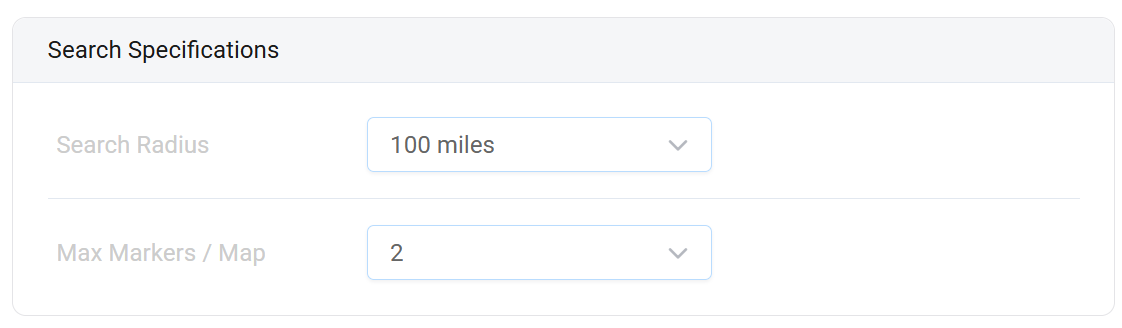
Your email platform supplies a recipient's address, city or postal code through merge tags. Set the search radius and number of markers to choose how many nearby locations appear.
When there isn't a matching location
Use a map-based Rule Set to show a different image if no location matches. Rules can also check a matched store's custom fields, such as its region or service availability. Map-based rules are available on Business.
Explore Rule SetsMake the map
part of your design.
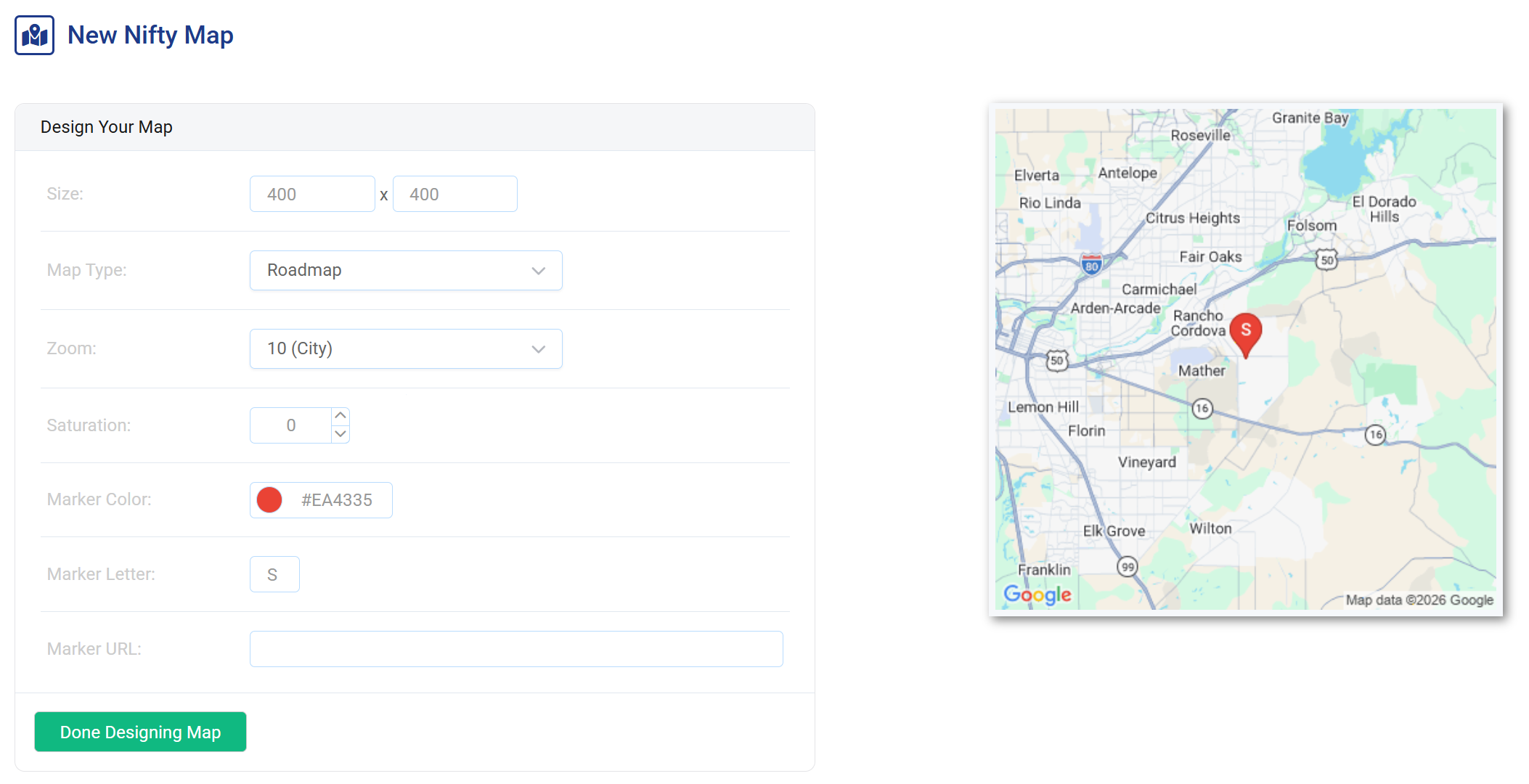
Set the map size, zoom and marker style to suit your email. In Studio, combine it with your artwork and location details to create a store invitation that looks like your brand.
Put a local invitation
in your next send.
Start with the locations you want customers to visit and the recipient fields already in your email platform. Your platform needs to support merge tags inside an image URL.
Maps use the values your email platform supplies. Email apps can cache images, so later opens may show an earlier image.
Prepare the locations
Import the addresses and store details, review any failed locations, and choose the map's search and design settings.
Build the local creative
Add the map and location fields to your image. Connect the recipient's location merge tags and preview sample values, including a location that does not match.
Test it in your email
Add the image URL to your campaign. Send a test through your email platform and check the location details and click destination before sending.
Give your next offer
a local address.
Use your store data to help customers find a nearby location in the emails you already send.
Create an accountMaps is not included in the standard trial. Ask about a Maps demo