Make their next date
easy to spot.
Put a booking, event or renewal date where your subscriber can see it. Personalized calendar images highlight the dates that matter to each person, in the email you already send.
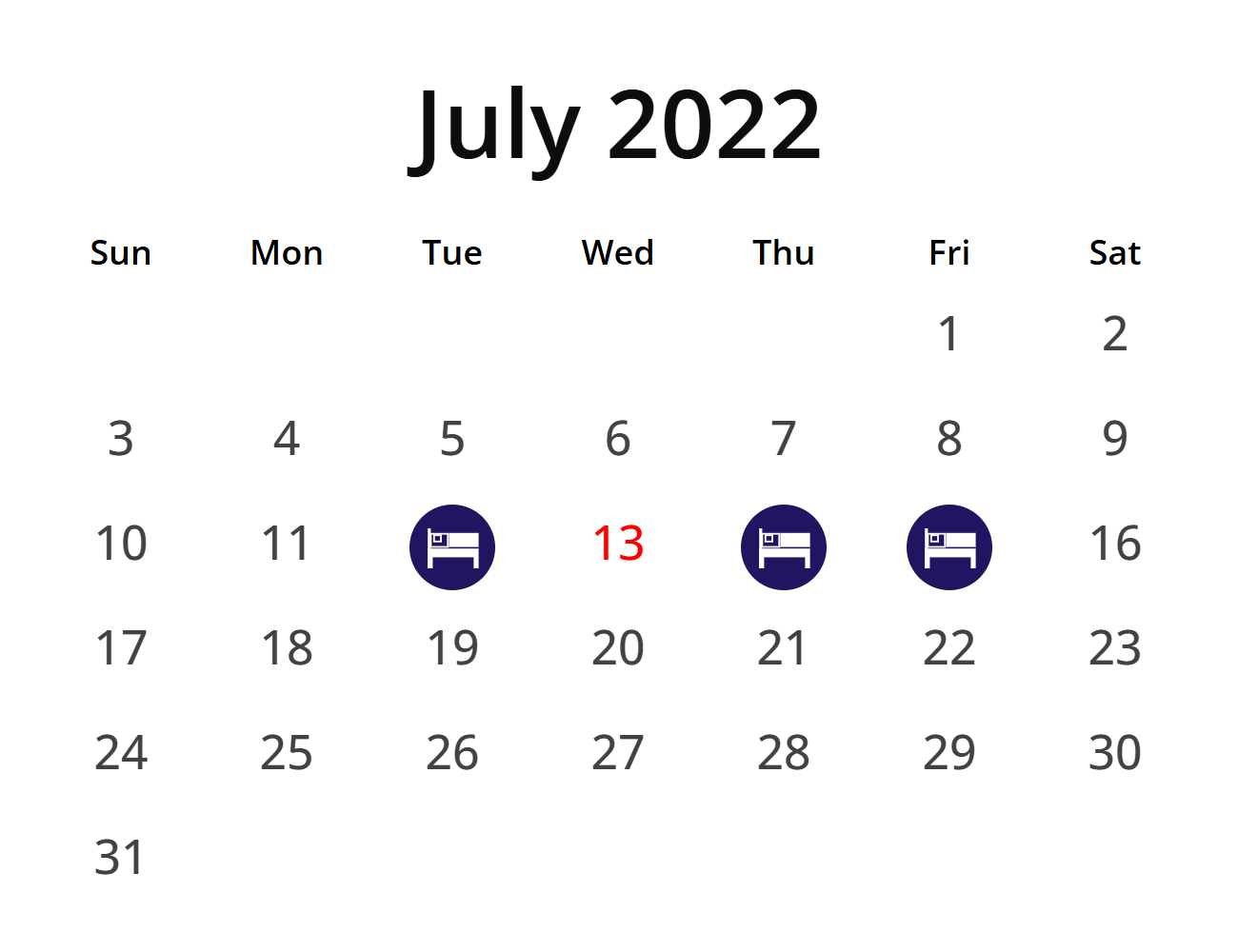
Make departure day
easy to find.
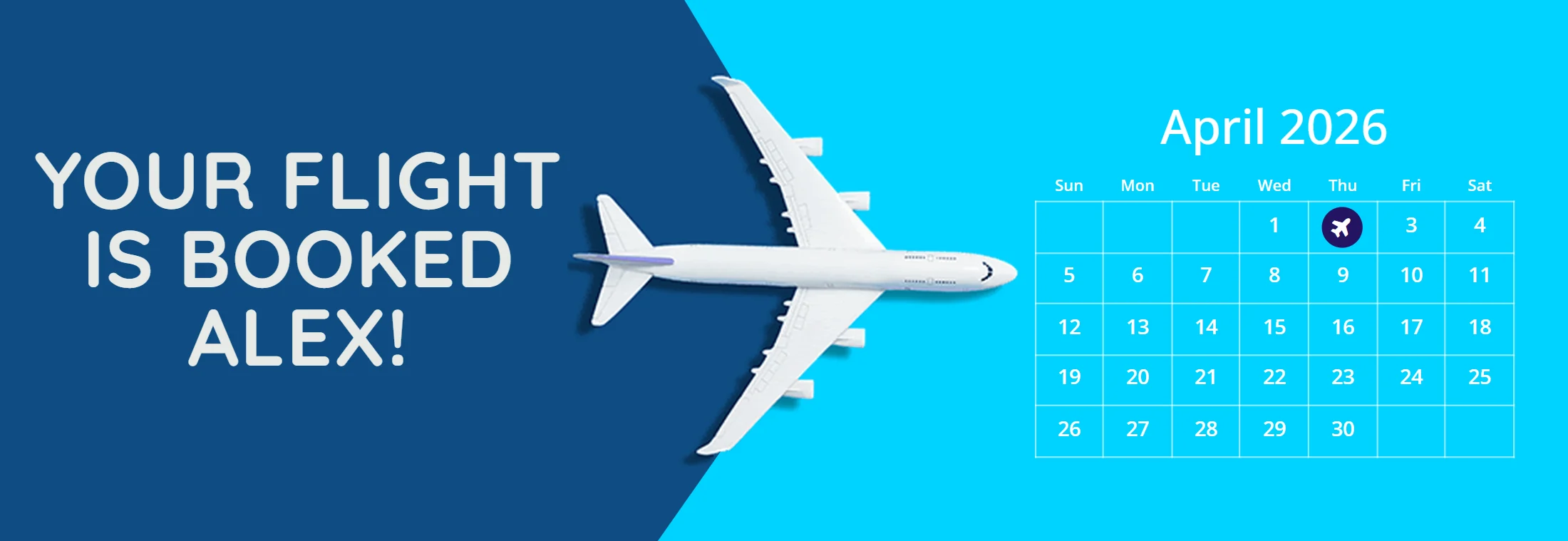
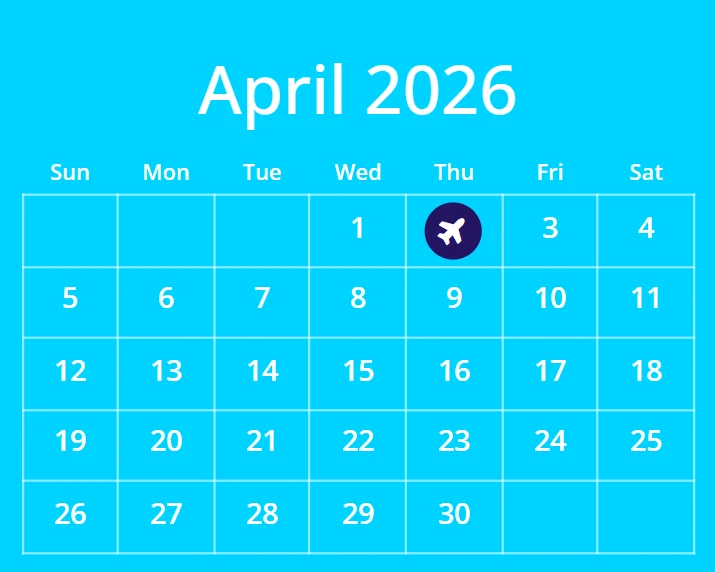
A flight confirmation can show the traveler's name and mark their departure date. Use the same idea to highlight a customer's renewal, trial end date or next appointment.
Supply the name and dates through your email platform's merge tags. One design can use different values for each recipient.
 Create your first calendar
Give important dates
your own style.
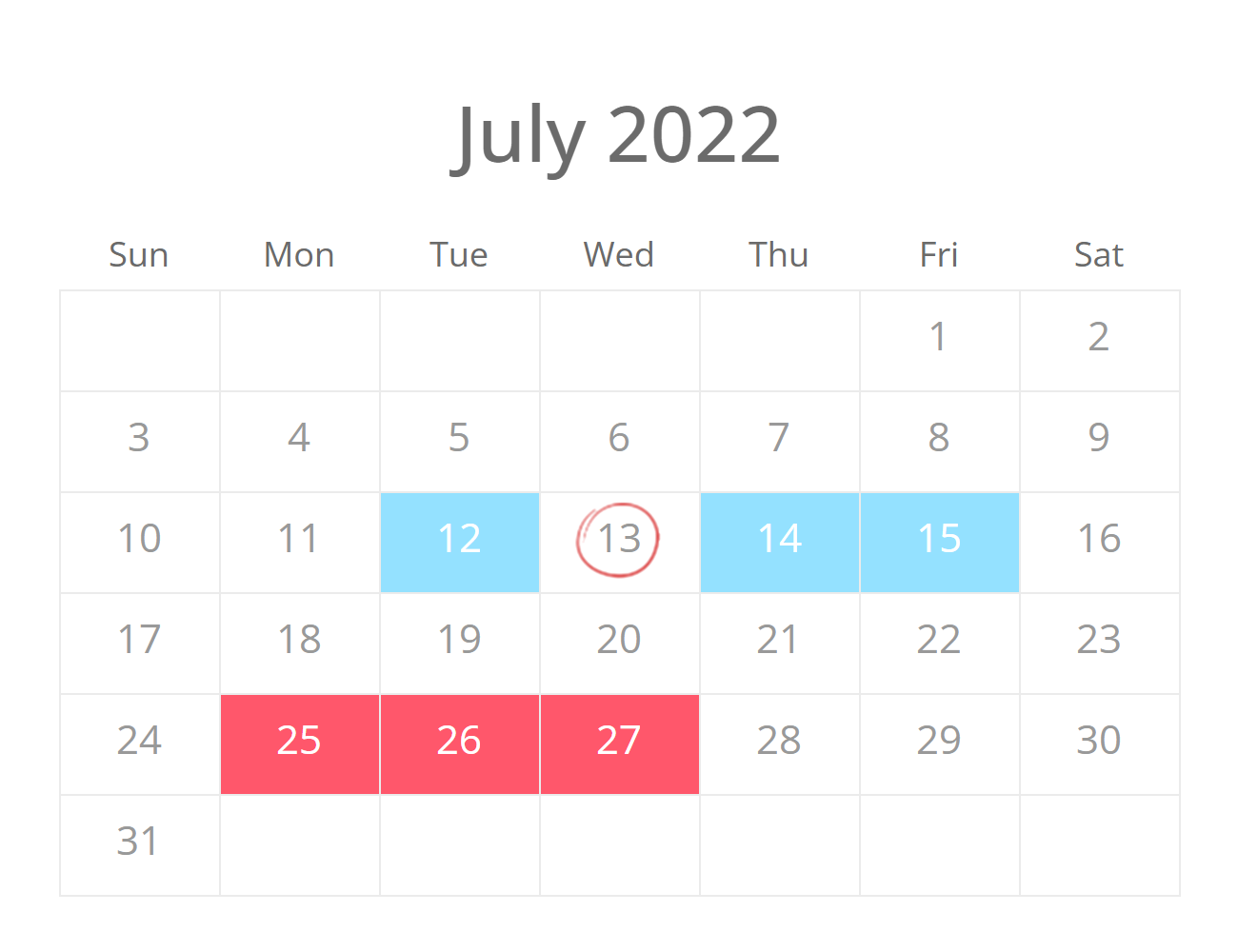
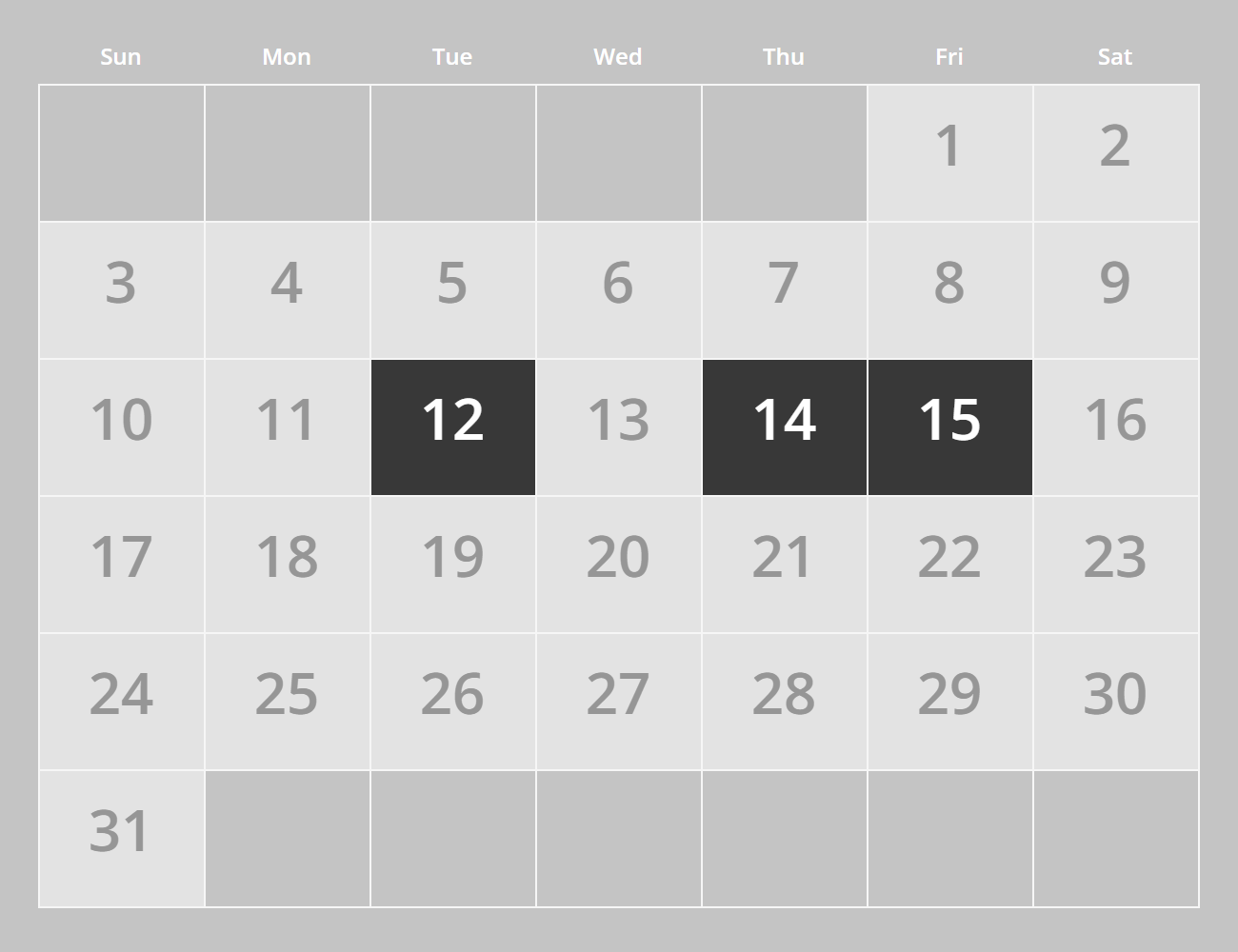
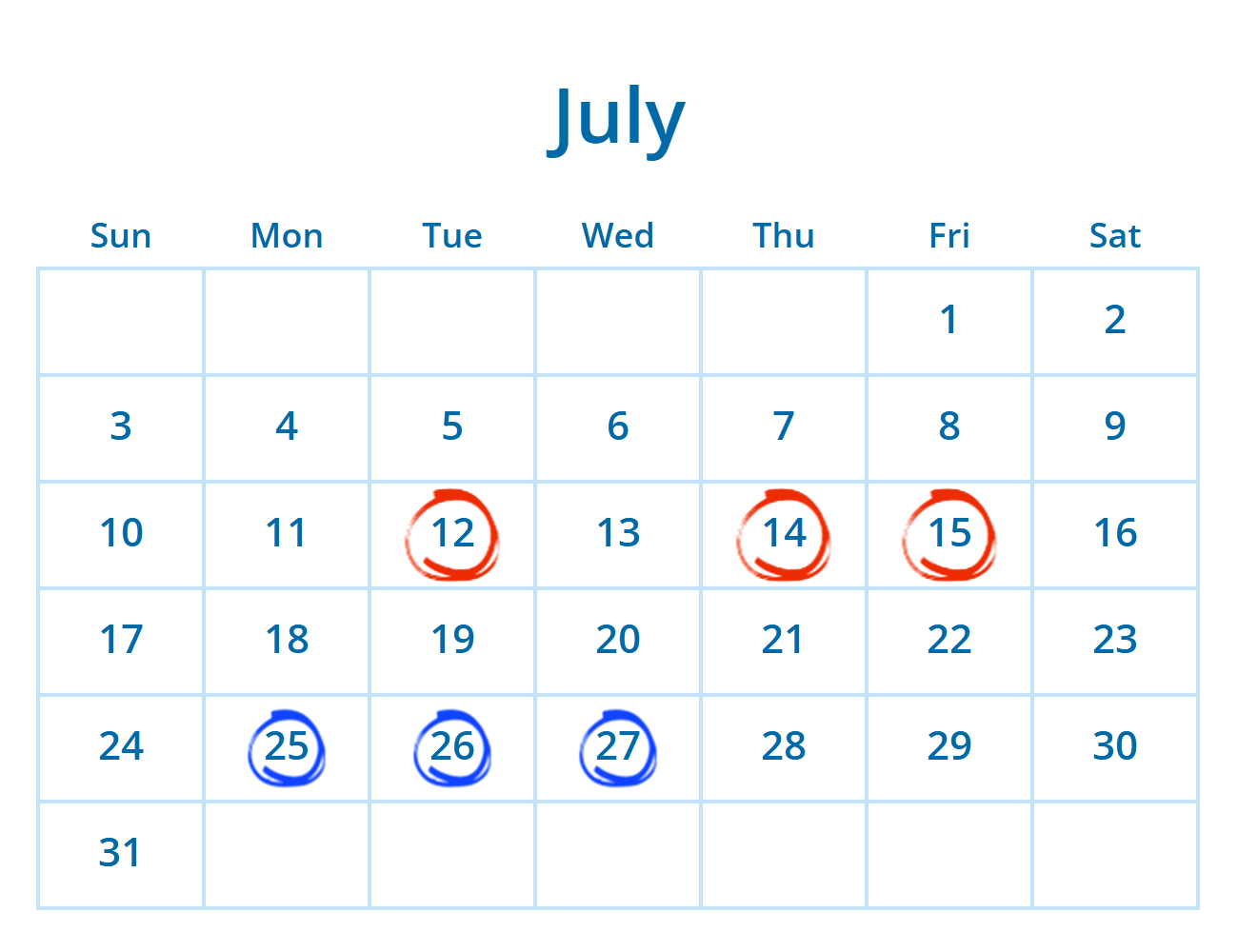
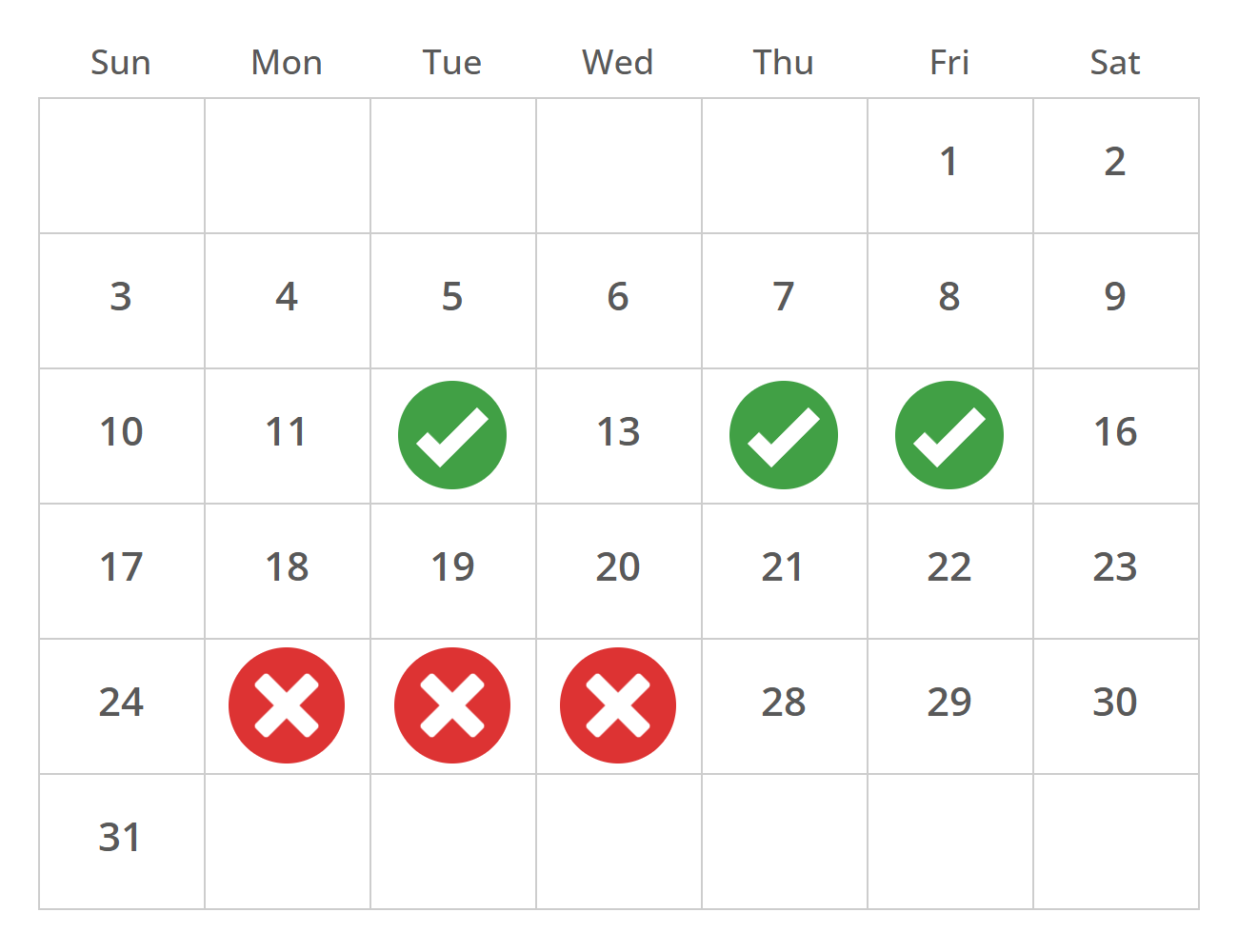
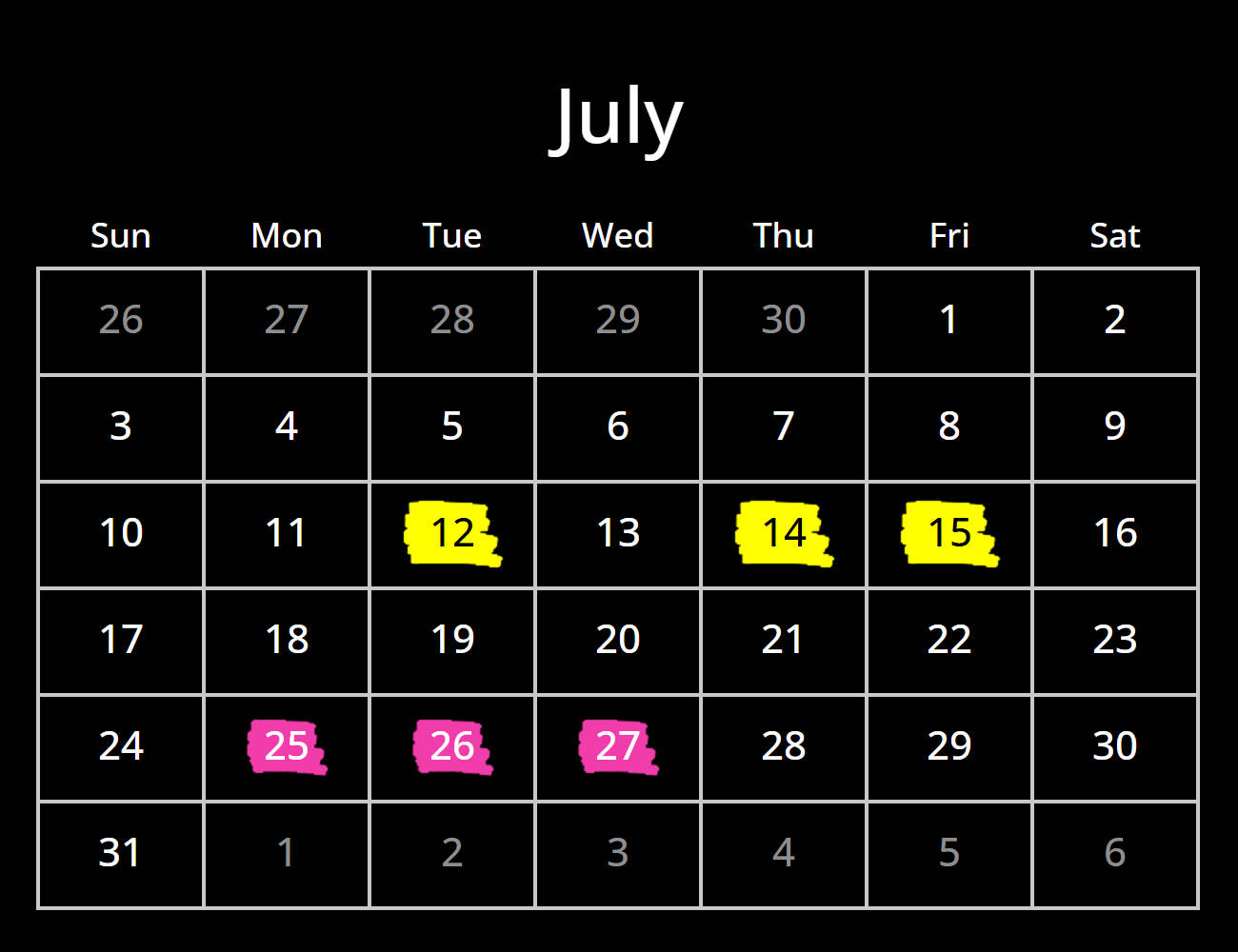
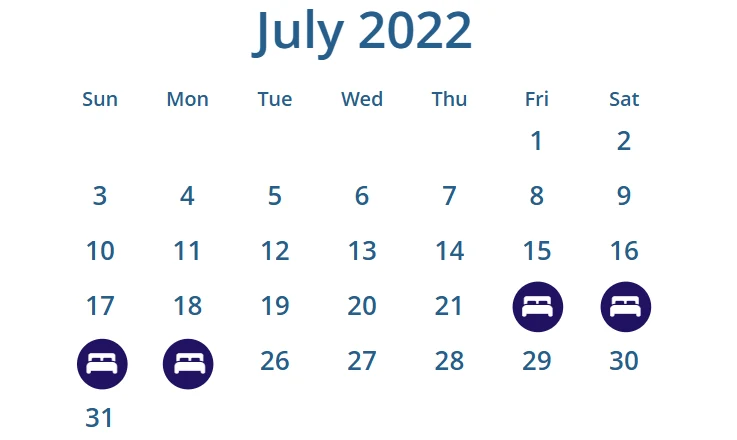
Mark a single event or a run of dates. Use colors, icons or different markers to distinguish a booking from a deadline, or one promotion from the next.
Choose the fonts, background, gridlines and header. Upload your own fonts and select a language for the month and weekday labels.
Calendars are layers in the Personalized Image editor. Add the customer's name and your campaign artwork in the same image.
Put the stay
in the picture.
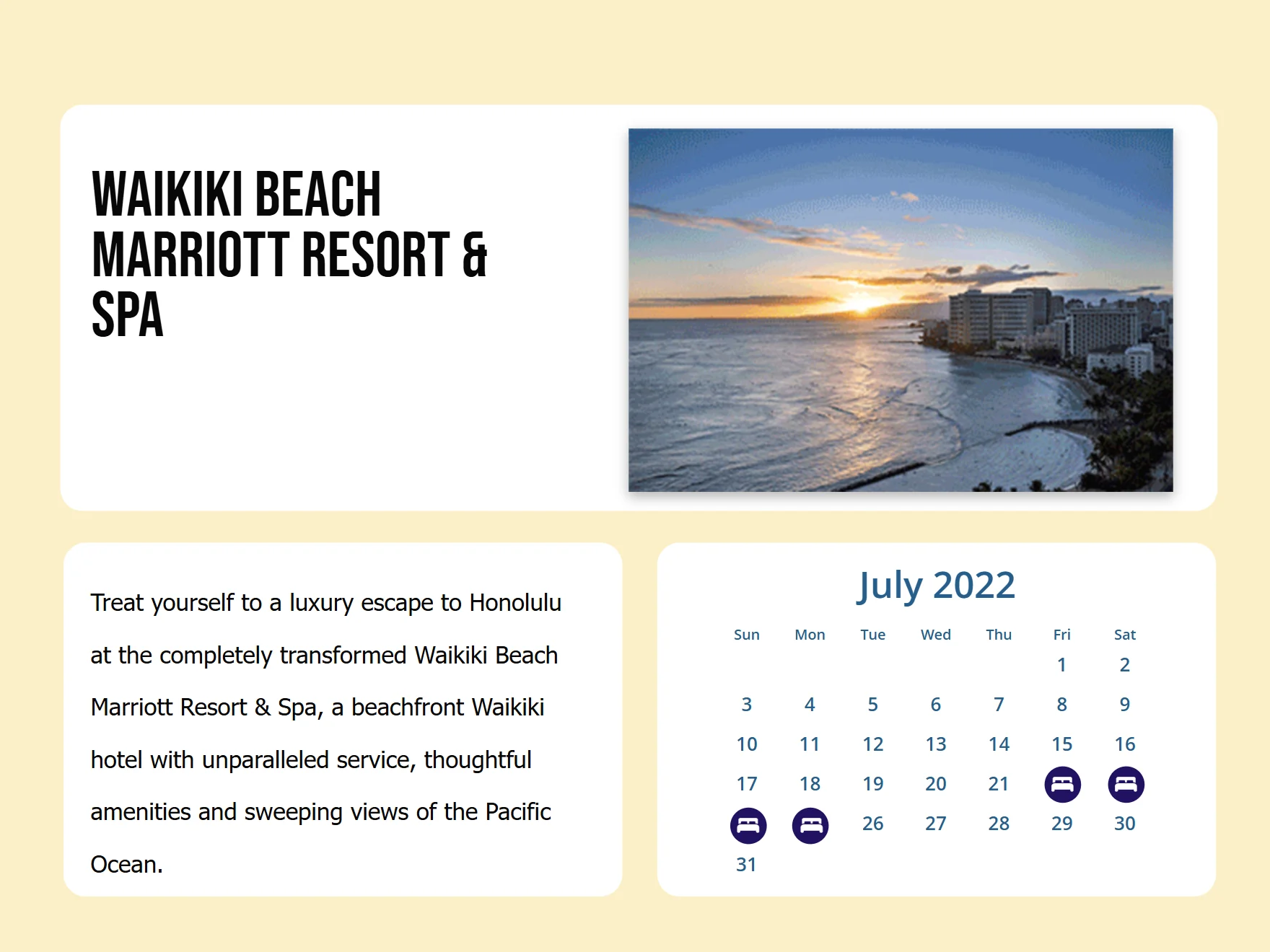
Bring the destination and dates together in a booking email. These hotel examples pair property photos and descriptions with highlighted stays.
For an event invitation, pair the venue artwork with event dates. For a sale, show the products beside the days the offer runs.
Bring the calendar
into your next send.
Start with a campaign and the date you want the reader to notice. Keep that date in your email copy too, so it remains available when images are turned off.
Design the calendar
Add a calendar layer in the Personalized Image editor. Set the month, style and highlighted dates, then combine it with your artwork.
Connect the recipient's dates
For personalized dates, add your email platform's merge tags to the image URL. Your platform must support merge tags in image URLs.
Add the image and test
Copy the hosted image URL into your email builder. Send a test with different recipient values and missing data before the campaign goes out.
Calendar images are generated when requested. Email apps may preload or cache them, so a later open can reuse an earlier image.
Give the next date
a place in your email.
Make a calendar for your next booking, event or reminder. Style it to fit the campaign around it.
Create your first calendar