Give your launch email
its next chapter.
Build anticipation with a countdown. Show the offer when your launch begins, then a closing message when it ends. Rule Sets choose the image for each stage through one image URL in your email.
NiftyImages evaluates rules when it receives an image request. Email apps can cache images, so a later open may reuse an earlier image. Plan your campaign with that limit in mind.
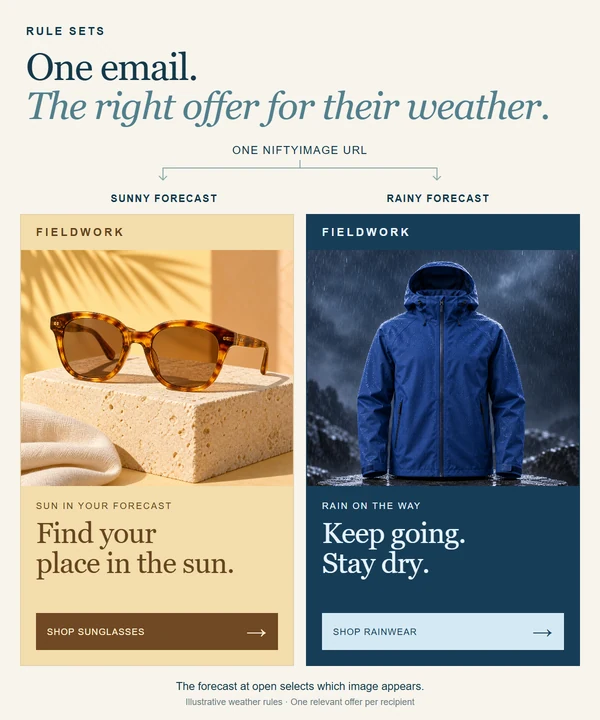
Make the offer fit
their forecast.
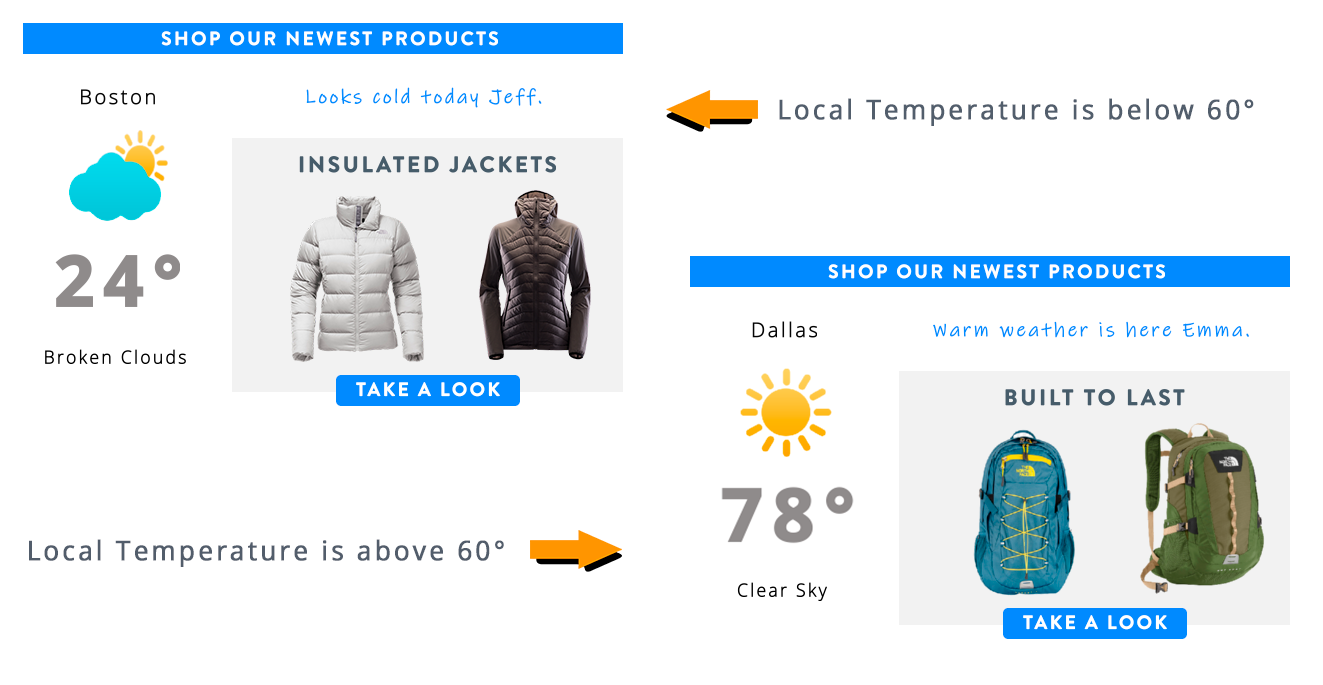
Use local temperature to choose the offer. This example shows jackets below 60 degrees and backpacks above 60 degrees.
This comparison shows two possible outputs. Each recipient gets the selected image. Set a default image for conditions that do not match or a location that cannot be resolved.
Supply a ZIP code or coordinates when available. Image proxies can hide a recipient's location.
Give each member
a relevant reward.
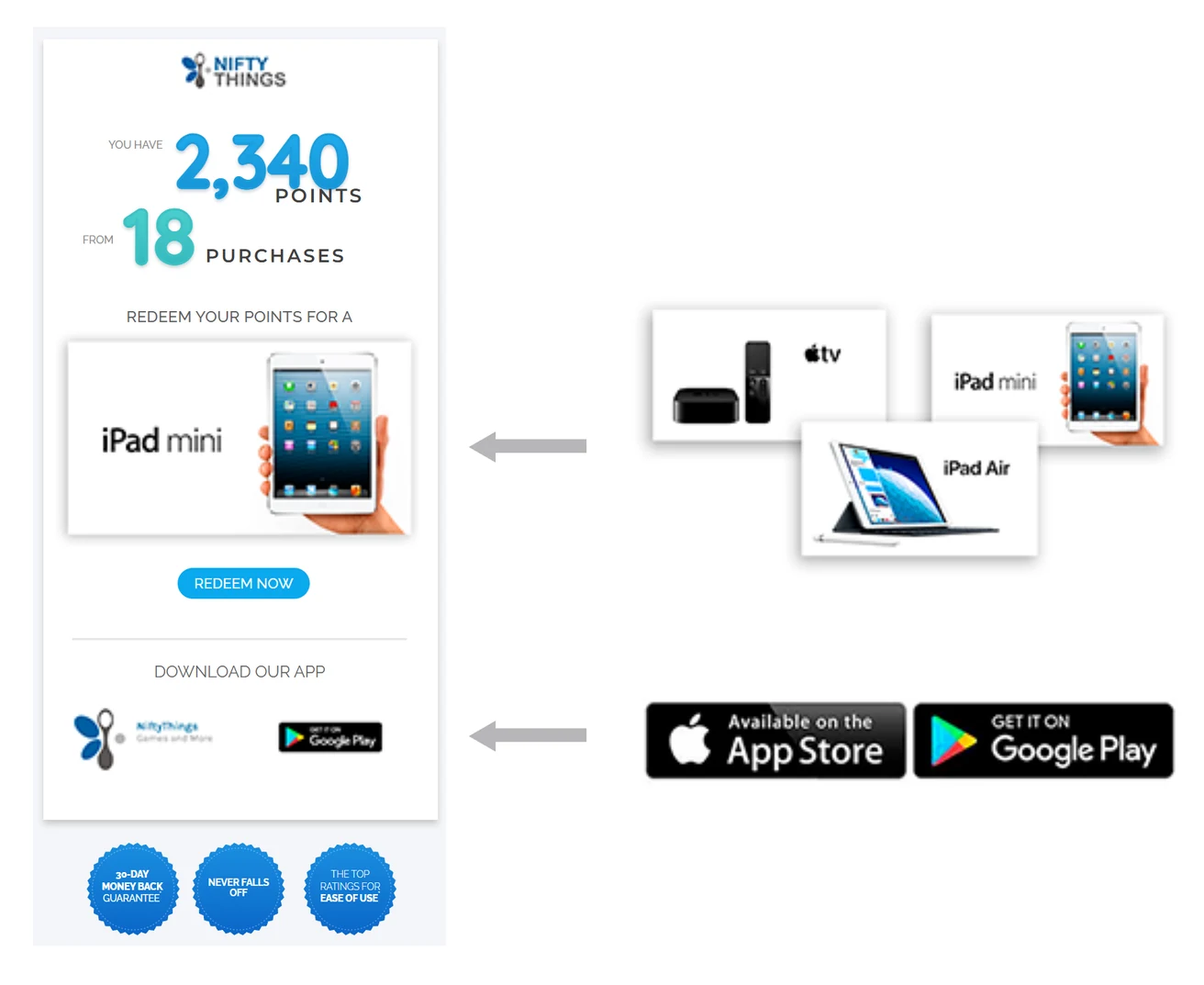
Set a rule using the points value supplied by your email platform to show a reward the member can redeem. The same email design can offer different rewards for different balances.
The example also shows a choice of app-store badges. Device and email-client conditions offer another way to choose an image, where those details are available.
Merge tags carry values supplied by your email platform. They do not automatically refresh a member's balance after sending.
Plan the changes.
Keep one image URL.
Choose your own campaign artwork or use NiftyImages you have already made, including countdowns and personalized images.
Choose each image and its conditions
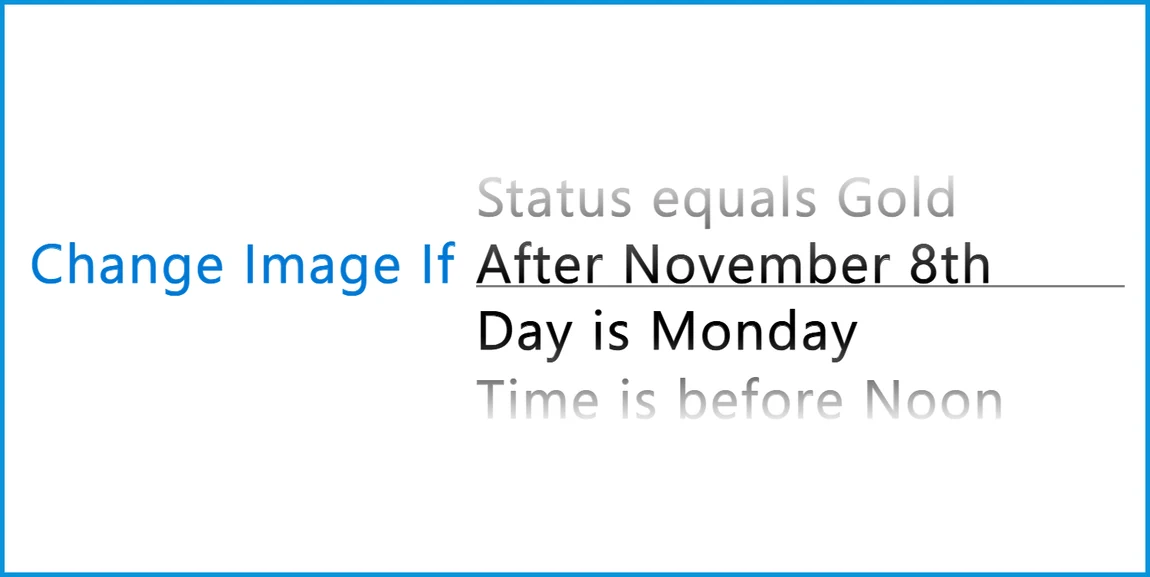
Use dates, times, audience values, weather or other supported conditions. Combine conditions when an image needs more than one match.
Put your rules in order
Rules run from top to bottom. Set a default image for when no rule matches, and give each rule its own click-through destination where needed.
Add the image and link to your email
Use the Rule Set image URL and its click-through link in your email platform. For audience-based rules, the platform must support merge tags inside image URLs.
Test the stages before sending
Check each condition, the default image and the click-through destinations. Send a test through your email platform and allow for its image caching.
Prepare for a busy event before it starts.
Goodform used NiftyImages live schedules in daily emails for the Birmingham 2022 Commonwealth Games. The schedule showed the next four sessions that day, then fewer as sessions passed.
“Through incorporating live schedules in daily emails to the audience, we were able to pre-prepare everything, streamlining our design efforts before the Games even started.”
Choose offers using
your business data.
Use a Data Store value to choose an image, such as an offer based on a customer's segment or a product's availability. Keep the source updated so the rules have useful data to work with.
Scale includes two limited Data Stores for Rule Sets, updated by CSV, in-app editing or store-scoped API keys. Full Data Stores and External Web APIs require Enterprise.
Connected sources can supply data when an image is requested. Source caching and email-app caching affect how quickly a change appears.
Explore connected dataPlan your next offer.
Let the rules choose.
Start with a campaign you have planned. Choose the images, set the conditions and test how they change.
Try your first Rule Set