Help them plan
for the day ahead.
Add a forecast for each subscriber's location, or for the destination they're visiting, to your next email. Style it for a weekend newsletter, travel reminder or daily update.
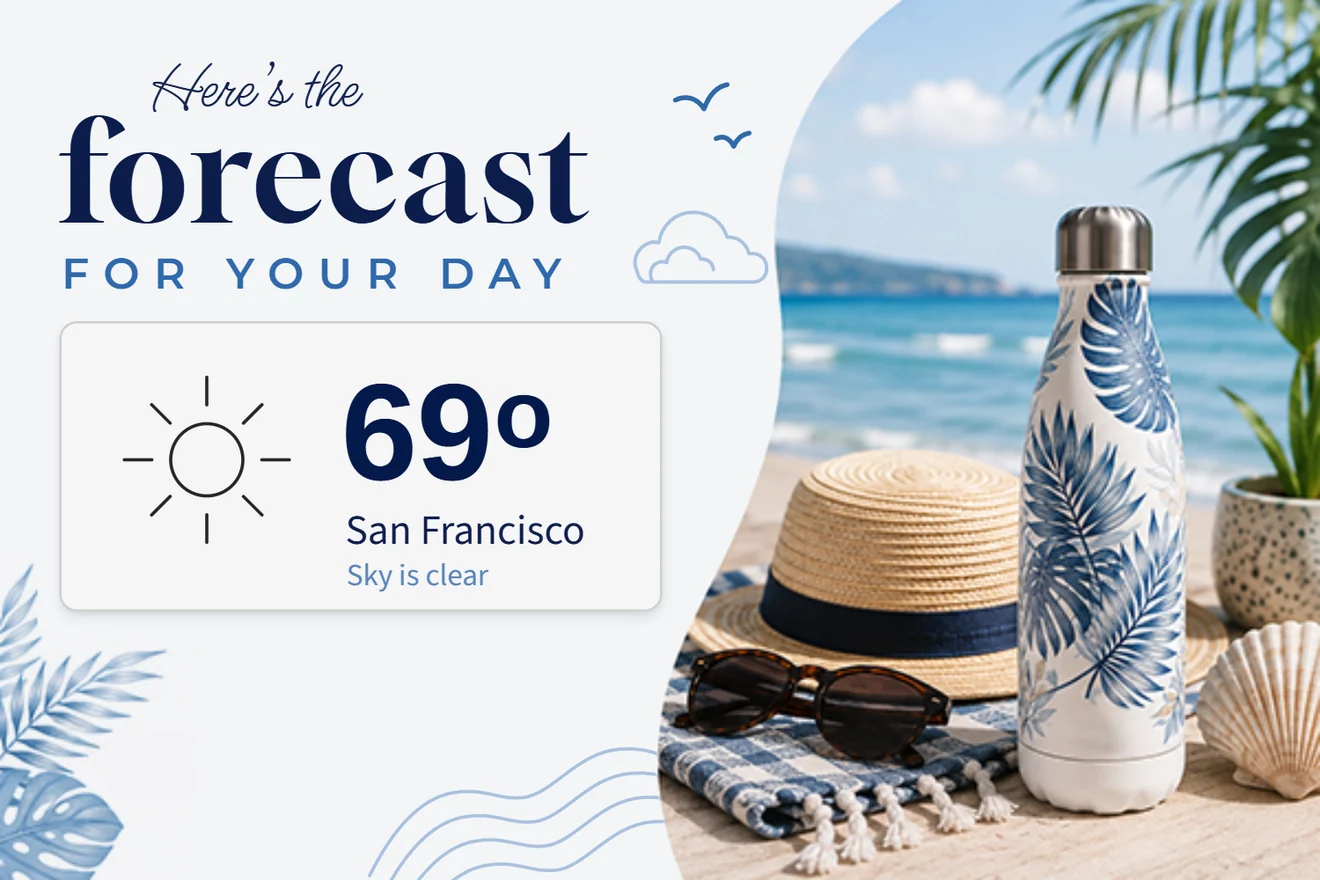
Make the forecast
part of your brand.
Put today's temperature, conditions and chance of rain alongside your campaign artwork. Give readers the details they need before they head out.
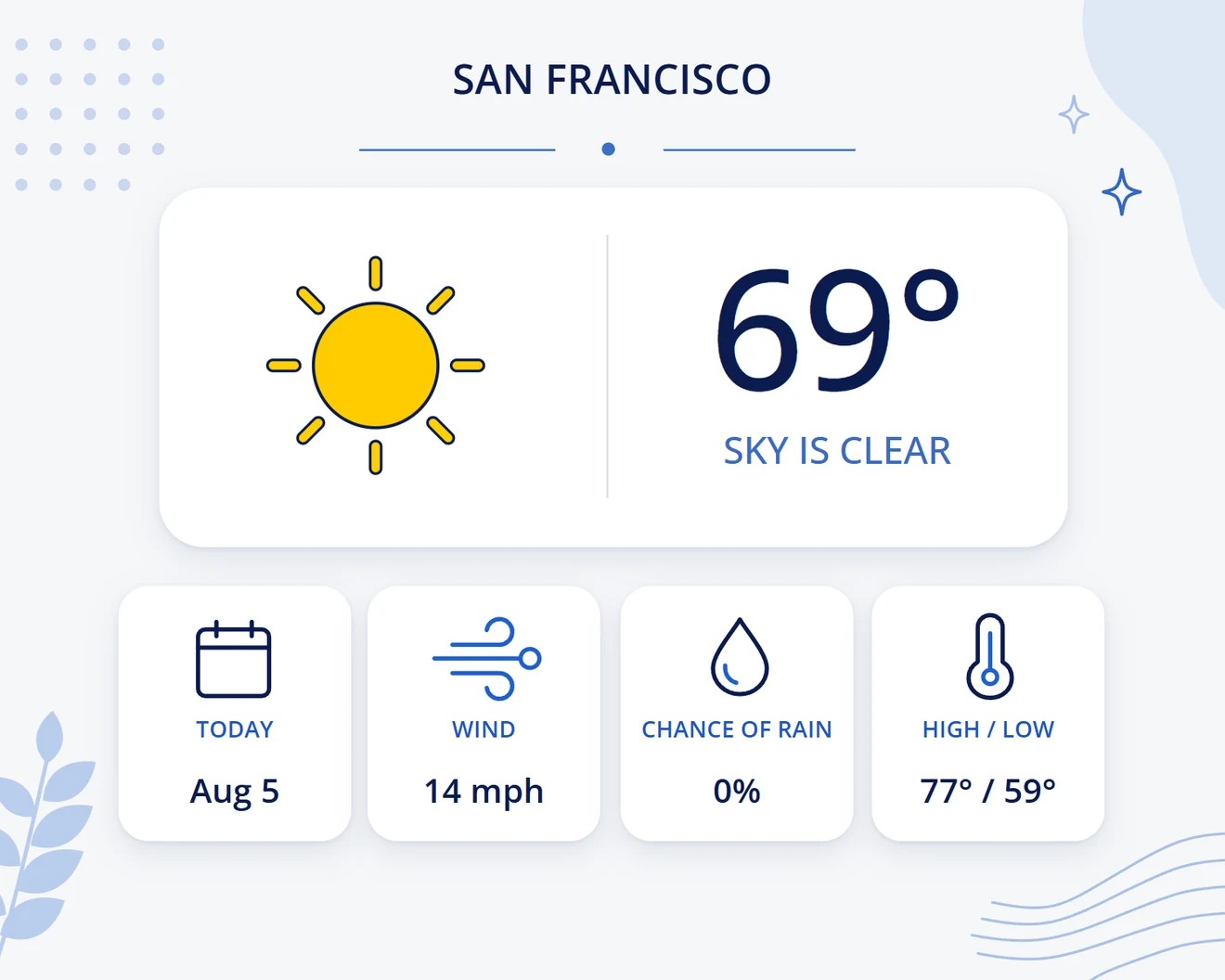
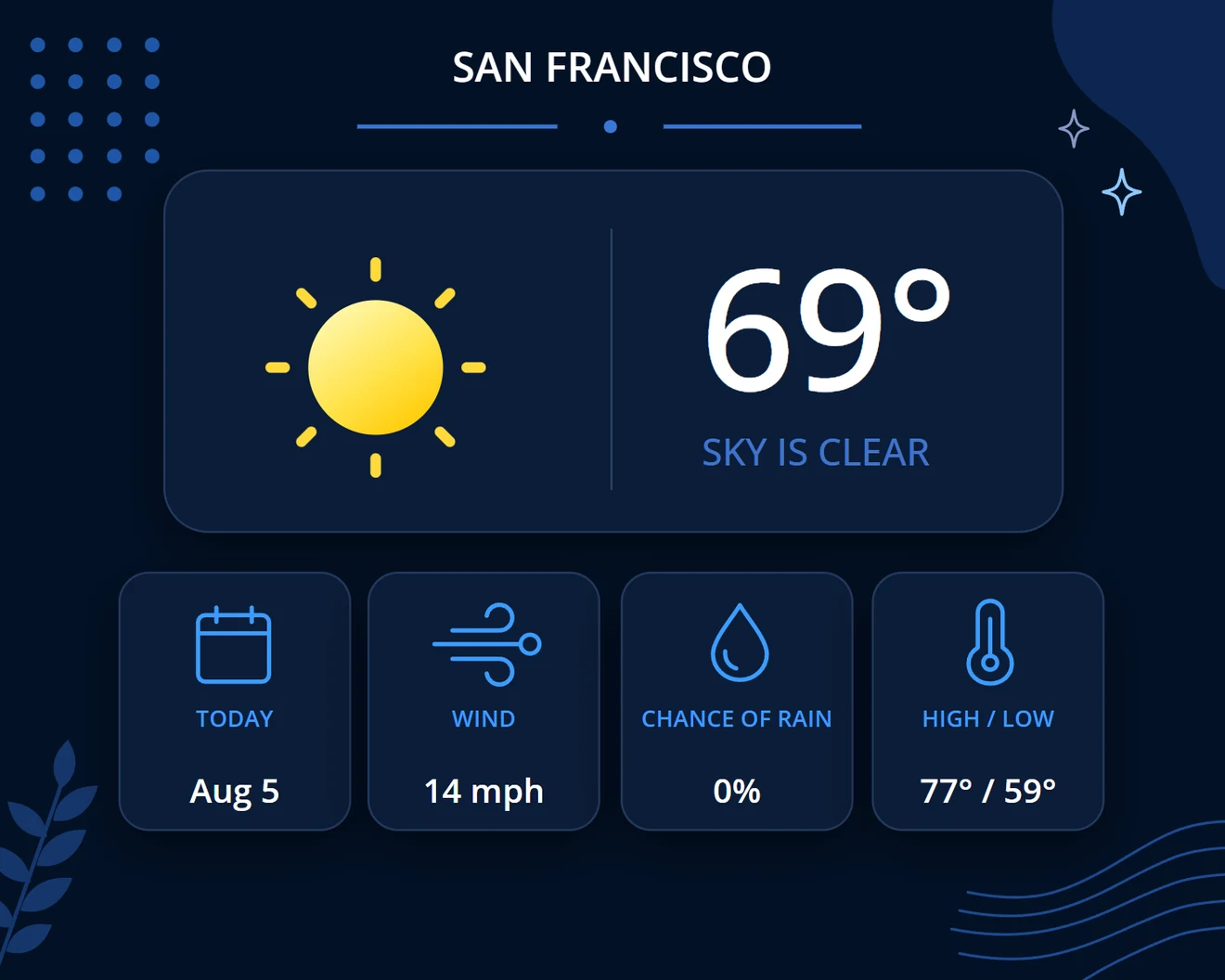
Weather Text and Weather Icon layers let you choose fonts, colors and your own artwork for each condition. Start with a light or dark template, then make it yours.
Add the city, high and low, wind, humidity, day and date. Temperatures can display in °F or °C, with localized day names.
Give them a view
of the week ahead.
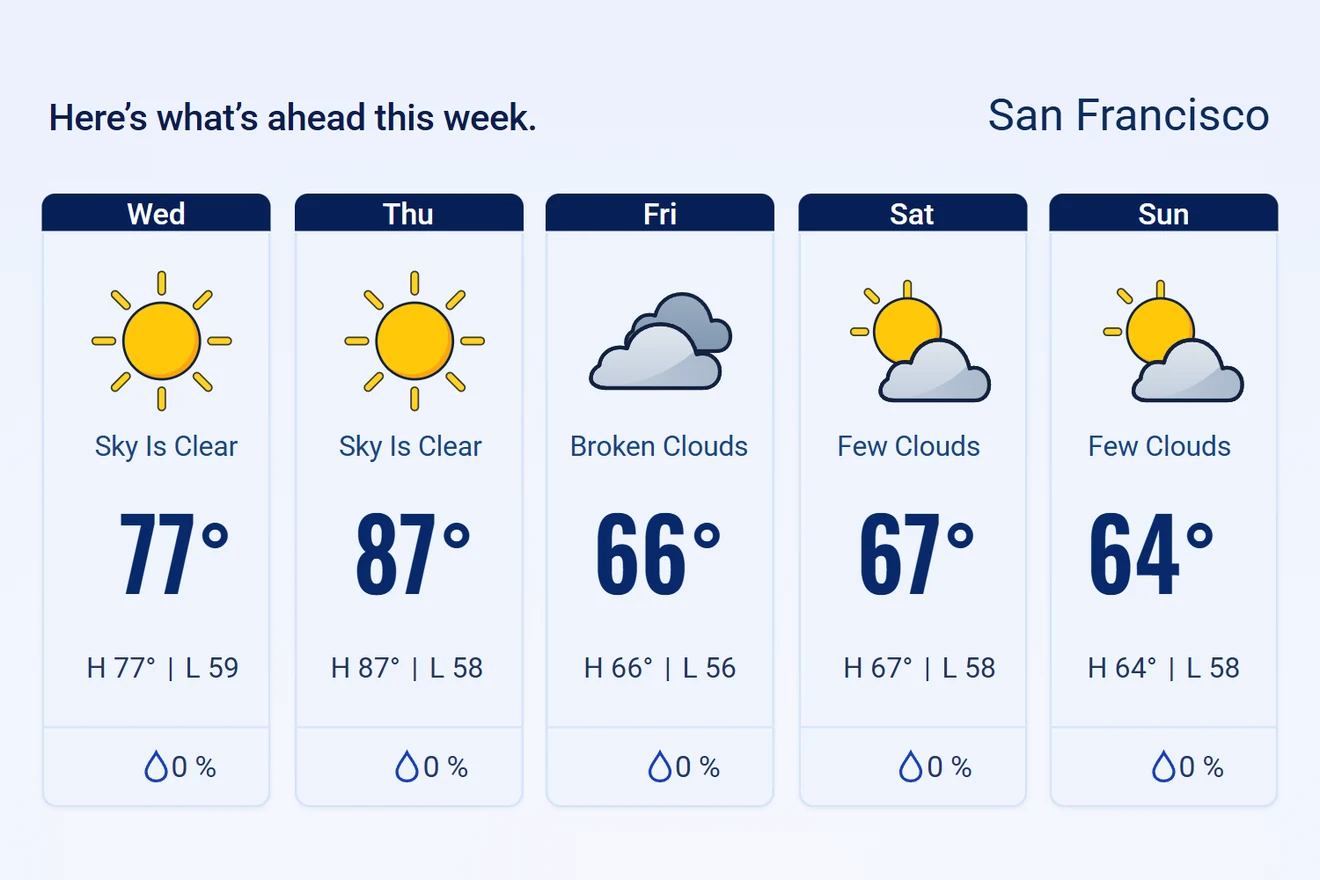
Help newsletter readers plan an outdoor weekend, or show travelers what to pack in a reminder before their stay.
Choose today or any of the next six days for each weather element. The forecast-strip generator lays out several days for you, ready to style in the designer.
For a trip or event, supply the destination's zip code or coordinates so the forecast is for the place they're going.
A forecast for
the fans on their way.
For the Birmingham 2022 Commonwealth Games, Goodform included Birmingham weather forecasts 48 hours ahead and 24 hours ahead in a follow-up email, alongside live sports schedules.
That campaign used a weather API. Today, you can add forecast text and icons directly to a NiftyImages design with Weather layers.
Add a forecast to
your next send.
Build your weather image in NiftyImages, then use it in your existing email platform. Weather layers are included in Starter.
Sign up to create a weather imageChoose and style a template
Open Weather from Create New Image. Choose a forecast card or strip and adjust the text, icons and layout.
Set the location and fallback
Use a known zip code or coordinates for your subscriber or destination. Preview another city and the Unavailable state to check your fallback text and images.
Add the image to your email
Use the image URL in your email template. For different subscriber locations, your email platform needs to support merge tags in image URLs. Send a test before your campaign.
When location isn't available
Without a supplied location, NiftyImages tries IP geolocation. Email privacy and image proxies can hide that location. If it can't be resolved, your configured fallback text or images appear.
When the forecast updates
NiftyImages resolves weather when an image is requested. Weather data and email images can be cached, so reopening a message may show an earlier forecast.
Match the offer
to the forecast.
Show sunglasses when clear skies are forecast and rainwear when rain is coming. Weather conditions in a Rule Set choose which image to serve from the same image URL.
Weather-based image selection is included in Scale. Displaying a forecast with Weather layers is included in Starter.
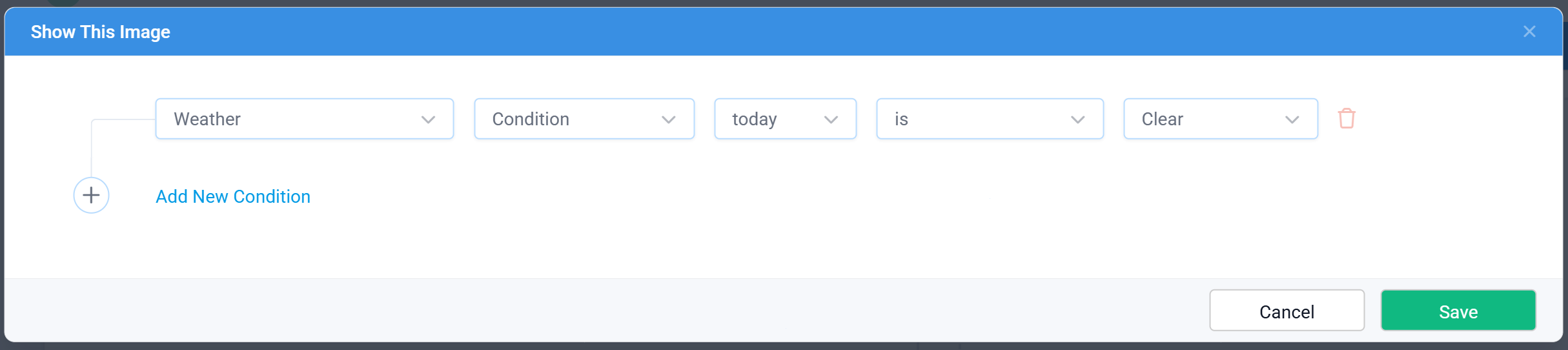
Choose Clear for today's condition to show your sunny-day image. You can also test temperatures or rain chances across the forecast. If weather can't be resolved, the Rule Set continues to another rule or your default image.
Explore Rule Sets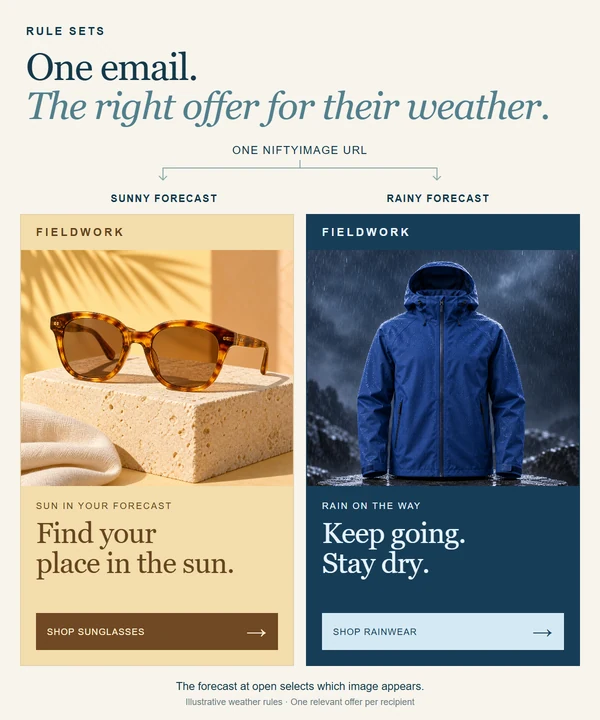
Make your next email
useful for their day.
Choose a weather template and build a forecast that belongs in your campaign.
Create a weather image